Most websites get traffic, but very few truly understand what their users are doing. That’s where Google Analytics events come in. While there are many things you can get just from core analytics, the real excitement comes from understanding how “events” work in measuring user journeys.
By setting up events, you can track specific user interactions on your site and turn everyday activity into valuable insights.
To save you some time, we’ve written up how to set up events in Google Analytics so you can better understand your audience and optimize your results.
GA4 Custom Events Explained: Track What Really Matters
In Google Analytics 4, not every user interaction is tracked automatically. This gives you the flexibility to define what matters most to your business.
Custom events are actions you set up to track specific user behaviors that go beyond GA4’s default tracking. These are tailored to your goals and help you focus on meaningful interactions instead of generic data.
Examples of custom events include:
- Clicking a “Get a Quote” button
- Submitting a lead form
- Playing a video
- Downloading a resource
- Starting a free trial
GA4 uses an event-based model, which means everything is tracked as an event. Custom events simply extend this system so you can capture actions that are unique to your website or app.
Why custom events matter:
- They help you track actions that directly impact your goals
- They provide deeper insights into user behavior
- They improve decision-making with more relevant data
- They allow better optimization of your website or campaigns
For example, tracking “Clicked Pricing Plan” is far more useful than just knowing someone visited a page. It shows intent and helps you understand what drives conversions.
Custom events shift your analytics from basic tracking to focused, actionable insights.
Creating Custom Events in Google Analytics 4
You can create custom events in GA4 in a few different ways depending on your setup. The most common and beginner-friendly method is through the GA4 interface, without needing code changes.
Method 1: Create Custom Events in GA4 (Based on Existing Events)
This method lets you create a new event using an existing tracked event.
Steps:
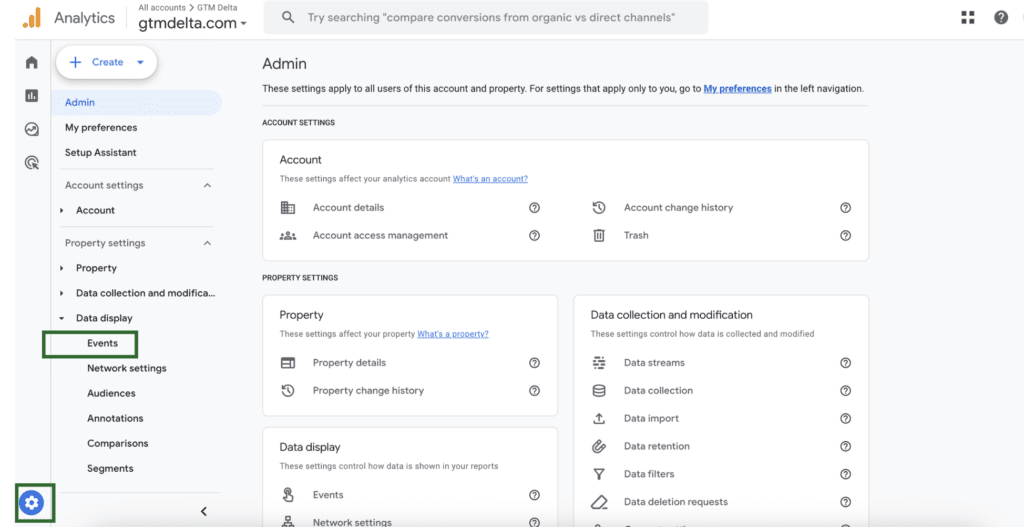
- Go to Admin in your GA4 property
- Under Data Display, click Events
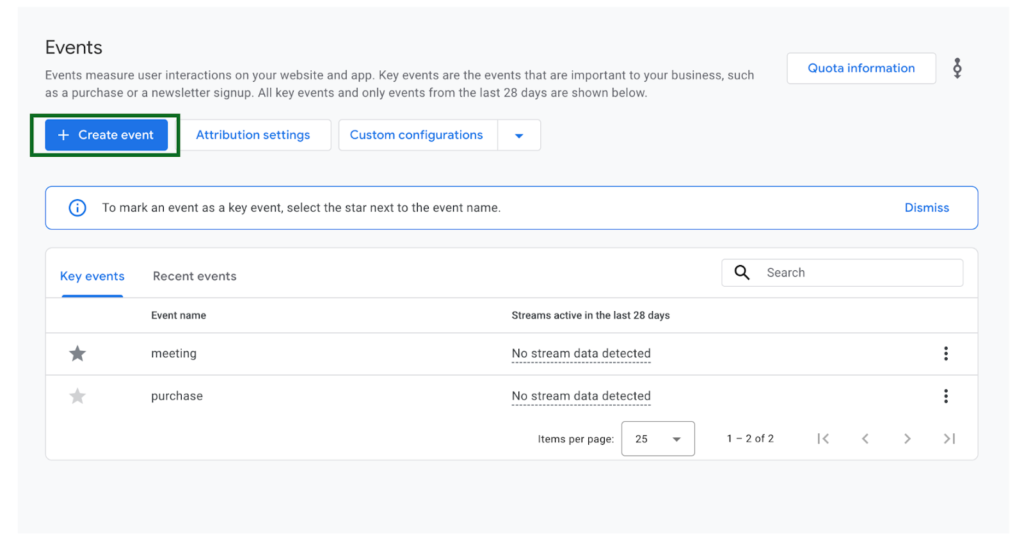
- Click Create Event
- Click Create
- Enter a Custom Event Name
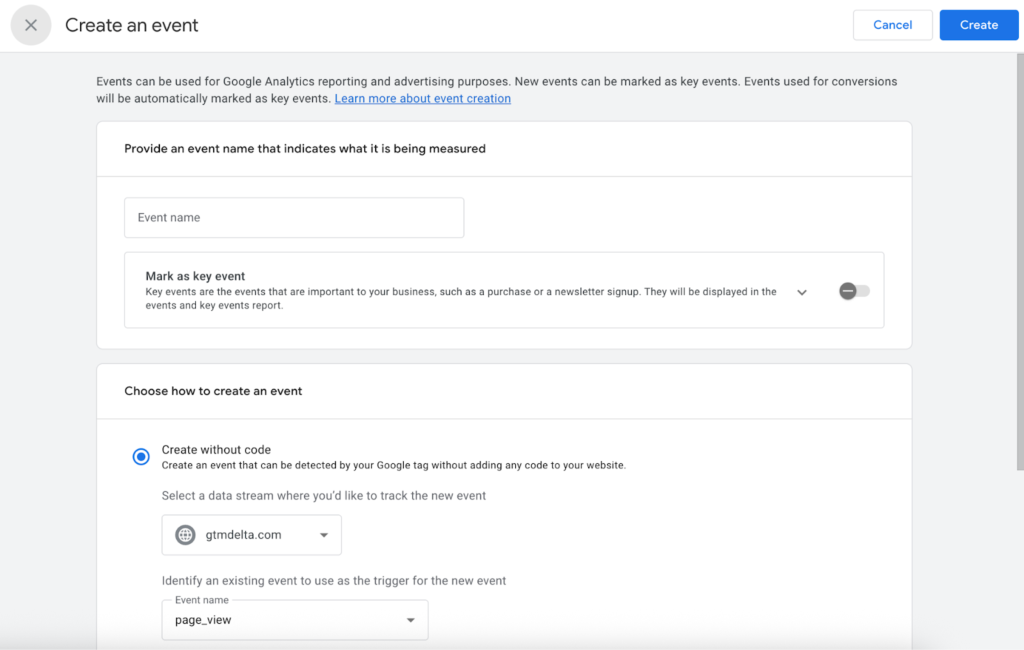
- Set up Matching Conditions based on an existing event
- Example: event_name = click
- Add parameters like link_text = “Get Started” if needed
- Click Save
This approach is useful when you want to refine or rename events that GA4 is already capturing.
How to Set Up Custom Events in GA4 Using Google Tag Manager
Google Tag Manager gives you more control over how and when events are tracked, without needing to edit your website code. It is the most flexible way to create custom events in GA4.
- Go to Google Tag Manager and create a new tag
- Select Google Analytics: GA4 Event as the tag type
- Choose your existing GA4 Configuration Tag
- Enter a clear Event Name such as button_click, form_submit, or video_play
- (Optional) Add Event Parameters like button_text or page_location to capture more details
- Click Triggering and choose when the event should fire
- Set conditions if needed, for example, tracking only a specific button click
- Use Preview mode to test the event and confirm it fires correctly
- Check the event in GA4 using DebugView
- Click Submit in GTM and publish your changes
This method allows you to track meaningful interactions with precision and update your tracking without changing website code.
Conclusion
Custom events in GA4 give you further insights into reader/viewer behavior. By going beyond basic tracking you can now focus on the actions that matter to your business goals (conversion, click through, purchase, sign up, book a demo, etc.)
Instead of relying on surface-level metrics, you can capture meaningful user interactions and turn them into actionable insights. Whether you create events directly in GA4 or use Google Tag Manager for more flexibility, the goal is still the same: track what drives engagement and conversions.
Set up the right events, test them properly, and keep your tracking structured, so that you can build a clearer picture of user behavior and make smarter, data-driven decisions over time.